
Note:
Click, Start | All Programs | CNS Programs | Software | Business Systems | Cview Installation Setup.
Select Yes.
Click Next, select I accept the terms in the license agreement and click Next. 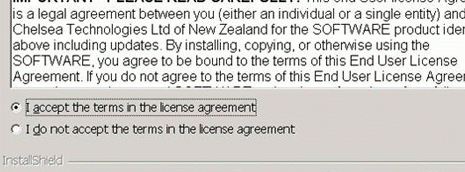
Click Next when the Readme Information screen appears.
Enter your full name in the User name field, and University of Manitoba in the Organization field. Select Anyone who uses this computer and click Next. 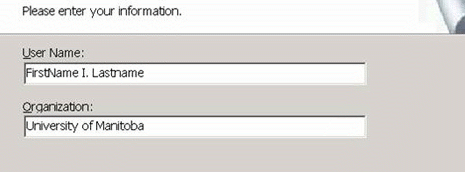
Click Next when the Destination Folder screen appears.
Click Install.
When the installation completes click Finish.
Your cView report viewer is now installed.
How to Open a Report with cView Report Viewer
Click on start -> Programs -> cView -> cView Report Viewer. 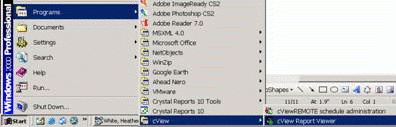
Click on File and then Open. 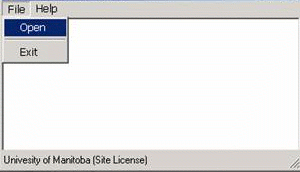
Double-click on a report to view or, browse to a report for viewing. 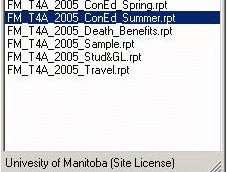
Your report is ready for viewing. 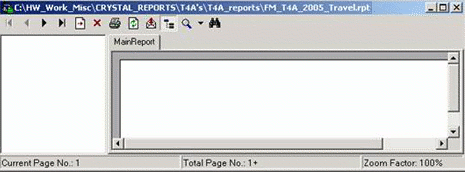
IST SERVICE DESK
Mon - Fri: 8am to 8pm
204-474-8600 or

After hours, weekends & holidays.
204-474-8600, press 2 to report a critical system outage
Walk-In:
Fort Garry
123 Fletcher Argue
Mon - Fri: 8am to 6pm
Join the queue:
Text your name to 431-631-0844
or scan the QR code below:

or visit: https://3601.waitwell.ca/join/1
Bannatyne
230 Neil John Maclean Library
Mon - Fri: 8am to 4:30pm
Join the queue:
Text your name to 431-631-6555
or scan the QR code below:

or visit: https://3602.waitwell.ca/join/5
New! Submit requests & check ticket status online at: umanitoba.ca/ist/service_catalogue/