

Information Services and Technology
How can we help you?
Browse our collection of services and self-help information to find answers to your questions.
-
My accounts and email
UMNetID/passwords/access to systems
-
My connections
Wi-Fi/wired network/videoconferencing/Bell
-
My devices
computers/printers/phones/tablets
-
My security
MFA/VPN/email/report lost or stolen device
-
Microsoft 365
M365 core products/other M365 products
-
Teaching, learning and classroom support
audiovisual/assessments/tools/labs
-
Media production services
request service/report a problem
-
Research computing
servers/enterprise storage/ARC
-
Enterprise applications
apps/databases/website/intranet
-
Technology procurement and vendor relations
purchase hardware and software/request consultation
Review the IST Service Level Agreement (PDF) for details about our incidence response and service resolution targets.
What we do
In addition to the many technology services we offer the university community, IST also provides information security awareness information and training, media production services on and off campus, an IT governance framework and a collaborative consultation process.

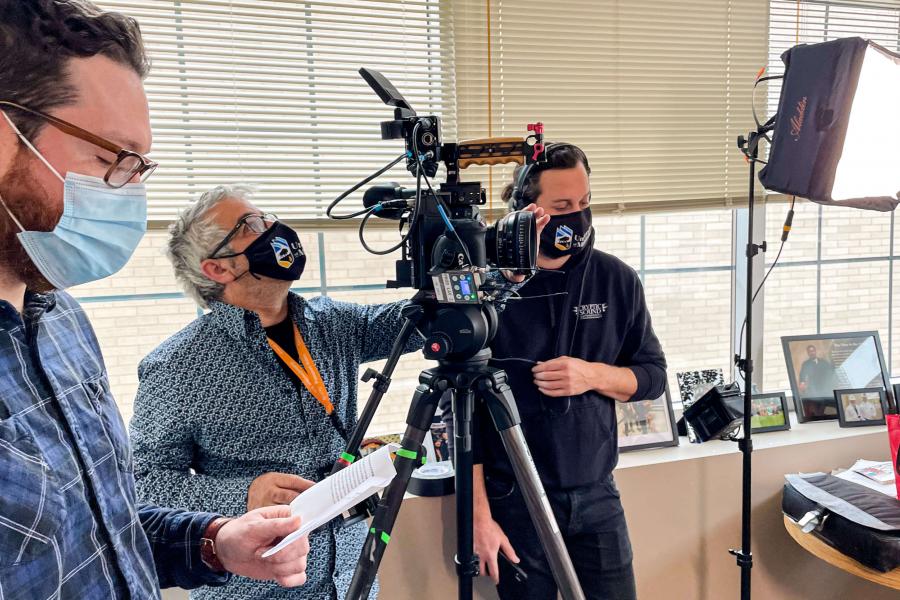


News
News & Stories
View more news and stories-

VP Evolution Project enables Entra MFA for VIP/ESS access on April 3
Information Services and Technology, UM Today
-

Recognizing and combating fraud this tax season
Information Services and Technology, UM Today
-
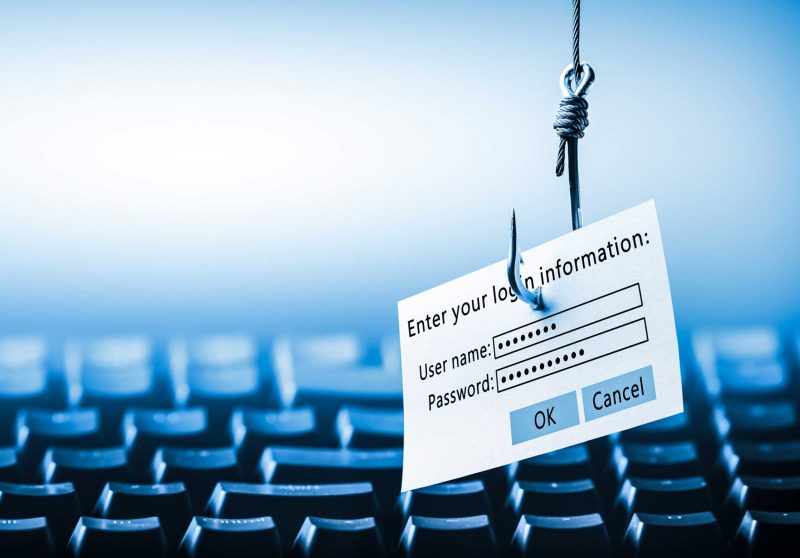
Enhancing cybersecurity awareness with Microsoft’s phishing simulation tool
Information Services and Technology
Contact us
Call or chat
Monday to Friday, 8 a.m. to 8 p.m.
Call 204-474-8600 or Chat now
To report a critical system outage after hours or on weekends and holidays, call 204-474-8600 and press 2.
IST Service Desk walk-in service
123 Fletcher Argue
University of Manitoba, Fort Garry
Hours: Monday to Friday, 8 a.m. to 6 p.m.
Join the queue: Fort Garry WaitWell or text your name to 431-631-0844
230 Neil John Maclean Library
University of Manitoba, Bannatyne
Hours: Monday to Friday, 8 a.m. to 4:30 p.m.
Join the queue: Bannatyne WaitWell or text your name to 431-631-6555